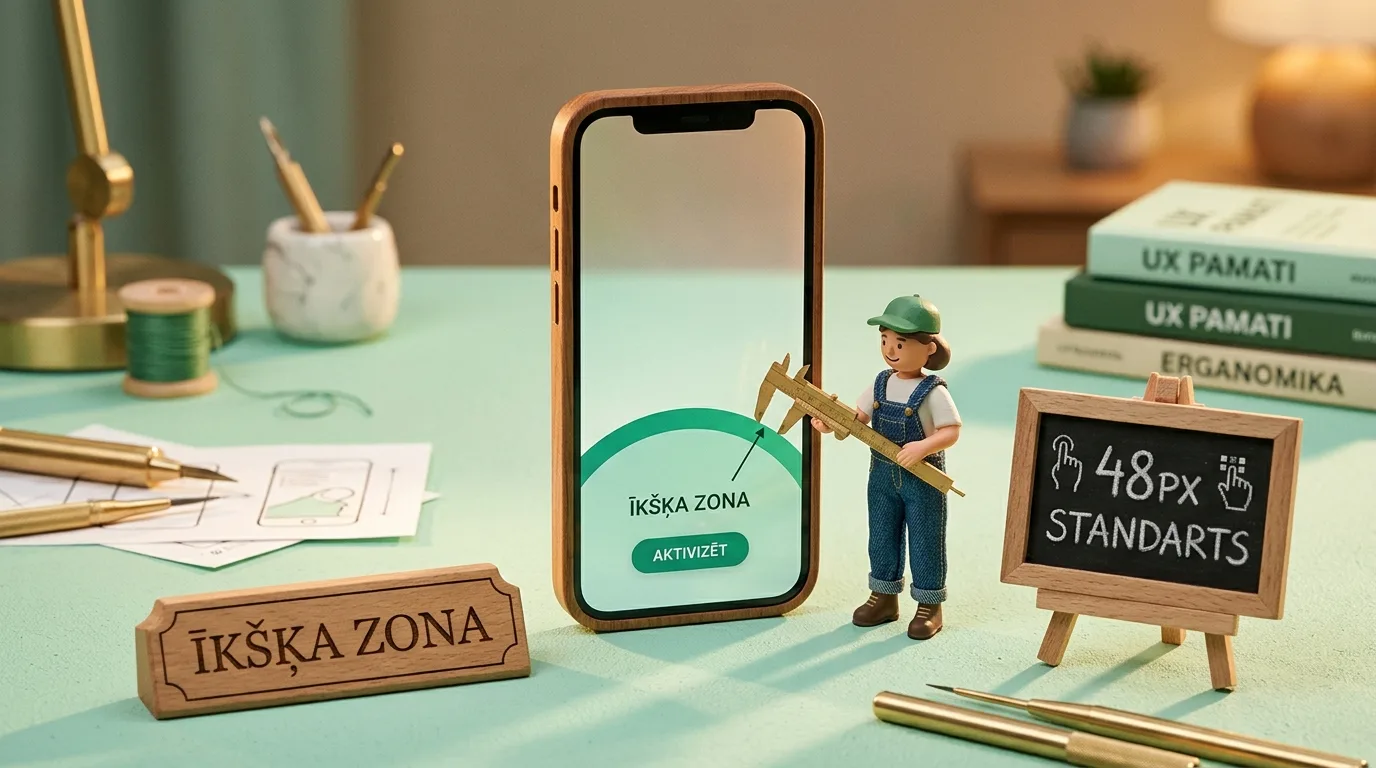
Over 70% of website visitors make decisions on mobile, yet most B2B websites are still designed for desktop standards. Empirical studies confirm that 75% of users operate their smartphones with a single thumb. If your primary CTA button and contact forms are located in the top corners (the "Ow Zone") or require filling out 8 heavy fields, your business is losing up to 45% of potential leads. In this article, we analyze the ergonomics principles of Steven Hoober and Luke Wroblewski: how to place elements in the natural thumb zone, implement a sticky bottom bar, and dramatically increase mobile conversions.
Steven Hoober and Luke Wroblewski: Mobile Thumb Zone Research
Most B2B company websites are still designed while sitting at a large 27-inch office monitor with a mouse in hand. Designers arrange elements, add complex dropdown menus, and create application forms with 8 fields, forgetting one fundamental truth: over 70% of visitors will view this site on a mobile phone while standing in line, commuting, or holding a coffee cup in their other hand.
Modern website development is based on empirical data: renowned mobile device researcher Steven Hoober, after observing the behavior of thousands of real users in public spaces, discovered that 75% of people use their phones with only one hand daily, relying solely on the movement of one thumb. Later, Luke Wroblewski formulated the Thumb Zone concept, dividing the mobile screen surface into three clear ergonomic zones:
- Natural Zone: The bottom and middle third of the screen, where the thumb can easily reach without shifting the palm or stretching fingers. This is exactly where your primary CTA button, main switches, and form fields should be located.
- Reach Zone: The middle section of the screen, which requires slight thumb effort or a change in angle.
- Ow Zone: The top third of the screen and especially the top corners. To reach these, the user must either change their grip (risking dropping the phone) or assist with the other hand.
If your website's main menu and application buttons are located at the very top in the "Ow Zone," you are creating unconscious physical resistance at every step. For more on post-click psychology and removing anxiety, read our analysis on post-click anxiety removal and micro-reassurance copy.
Why traditional B2B application forms fail on mobile
By studying user click paths and heatmaps with user behavior analytics, a concerning picture emerges regarding how many visitors hit a wall due to poorly thought-out forms.
On the average B2B website, a contact form looks like a government questionnaire: 'First Name', 'Last Name', 'Company Name', 'Registration Number', 'Job Title', 'Email', 'Phone', 'Comment', and finally - a tiny checkbox for the privacy policy. On a computer with a full-sized keyboard, this takes 45 seconds. On a mobile device, such a form means:
- The on-screen keyboard covers 60% of the visible area, and the user can no longer see previous fields.
- The browser automatically zooms in (iOS Safari zoom) if the field font size is smaller than 16px, ruining the entire page layout.
- The phone number field opens a standard text keyboard with letters, forcing the user to manually switch to numbers.
- After an accidental wrong tap, the client receives an error message and simply closes the tab.
The statistics are relentless: these types of desktop-centric forms on mobile devices lose between 40% and 55% of all potential clients who were already ready to place an order.
Technical Comparison: Desktop Form vs. Mobile Ergonomic Interface
| Parameter | Traditional B2B Form | Gold Thumb Zone Form |
|---|---|---|
| Number of fields | 6 to 9 detailed input fields | Maximum 2 to 3 fields (Name, Tel/Email) |
| Button placement | Bottom of the page after long scrolling | Fixed bottom bar in the natural thumb zone |
| Button size | Standard 36px to 40px height | At least 48px to 54px for easy tapping |
| Input keyboard | Standard text layout for all fields | Numeric keypad with type="tel" for phone |
| Conversion rate | Average 1.2% to 2.1% of visitors | 4.8% to 7.5% of mobile visitors |

"A mobile phone is not a small desktop computer. If your website's main application button is located in the top right corner or the form requires eight input fields, you are voluntarily losing half of your leads within the first five seconds."
Sticky Bottom CTA Bar: Instant Accessibility
One of the most powerful mobile UX solutions is the Sticky Bottom Bar. As the user scrolls down the page, a small, discreet bar with the main action remains available at the bottom of the screen (exactly in the thumb's natural resting zone): 'Request a 15-min call' or 'Calculate estimate'.
The highest mobile interface efficiency is provided by high-converting landing page development with a fixed bottom CTA bar, which guarantees immediate communication accessibility.
Touch Target Size and Fitts's Law
In user interface mathematics, there is Fitts's Law: the time required to hit a target is inversely proportional to the size of the target and the distance to it. If a button is small (e.g., a 32px high link in a line of text), the human brain must slow down hand movement, strain vision, and carefully aim with the finger pad.
Apple iOS and Google Material guidelines set strict minimum sizes:
- Minimum touch area: 48x48 CSS pixels (the average human finger pad area in physical contact is 9 to 11 millimeters).
- Spacing between interactive elements: At least 8 to 12 pixels to prevent accidental pressing of adjacent buttons.
- Font size in input fields: At least 16px (1rem), which prevents automatic browser zooming and maintains clear context.
Cognitive Tunneling and Attention Focus on Mobile Screens
A mobile phone screen physically creates what is known as Cognitive Tunneling. On a computer, a visitor perceives content, the sidebar, and the navigation header with peripheral vision. On a mobile phone, the user sees only a narrow, vertical slice of content. Any distraction or unnecessary element instantly breaks the reader's rhythm.
Therefore, mobile sales pages must follow the Single Action Focus principle: each scroll screen should contain only one primary action. Placing multiple competing buttons ('Learn more', 'Download brochure', 'Request a call') on one screen causes 'Choice Paralysis' (Hick's Law) and leads to the user not clicking any button and closing the page.
Multi-Step Progressive Disclosure
If your service still requires collecting more than 2 parameters, the best engineering practice is Progressive Disclosure. The form is divided into two short, non-overwhelming steps:
- First step (Low stress): One question about the project type or desired solution with large, easy-to-tap radio cards in the thumb zone.
- Second step (Finish): Only two input fields (name and phone) to receive the estimate. Because the user has already invested in the first step (Sunk Cost effect), completion conversion increases by 35% to 48%.
Autofill and Browser Capabilities
On a mobile device, every keystroke requires effort and creates an opportunity for error. Modern mobile browsers (Apple Safari, Google Chrome) contain powerful Autofill algorithms that can fill in a person's name, email, and phone number in one second, provided the site code has the correct HTML attributes:
autocomplete="name"for the name field.autocomplete="email"for the email field.autocomplete="tel"andtype="tel"for the phone number.
Correctly configured attributes allow the client to complete the application with one FaceID or fingerprint touch. This removes 90% of physical typing friction and ensures that even a busy client completes the application without stopping.
The Role of the Top Screen Zone: Passive Information Only
If the bottom third of the screen is reserved for active action (CTA buttons and input fields), what is the top part of the screen for? The golden rule of ergonomics states: the top "Ow Zone" is intended only for passive perception and peace.
This is where the company logo, security certificate indicator, phone icon for quick calling, and a short, powerful value proposition belong. The client does not need to press buttons at the top of the screen - their eyes read the information, but the thumb naturally stays at the bottom of the screen, ready to confirm the action.
Error Message Micro-copy and Stress Reduction
Nothing repels a mobile user like an aggressive, red error message without a clear solution: 'Input error! Check data!'. Such micro-copy creates guilt and cognitive stress, prompting the user to simply leave the page.
Modern user-friendly forms use reassuring error prevention: if the @ symbol is forgotten in the email field, the message explains in a gentle tone: 'It seems the @ sign is missing from the email address (e.g., [email protected])'. This empathetic approach makes the interface a trusted partner rather than a strict examiner.
Thumb Fatigue Prevention and Scroll Inertia: On long mobile pages, the user performs dozens of scrolling movements with the same finger. If interactive elements change their location on every screen (in one block the button is on the right, in another on the left, in the third in the center), finger muscles and eyes tire quickly. Consistent button placement in the bottom center zone creates a predictable rhythm, preserving the reader's energy and readiness to place an order.
In summary: mobile ergonomics is not just an aesthetic choice, but a mathematically proven sales instrument. By adjusting button placement to the golden thumb zone and getting rid of unnecessary form fields, a company gains an immediate jump in conversions without additional marketing expenses.
Mobile Interface and Thumb Zone Checklist
Frequently Asked Questions about Mobile UX and the Thumb Zone
Won't we get low-quality leads by reducing the number of fields in the form?
No, this is a common unfounded fear. The sole purpose of the initial form is to open a communication channel between the client and your expert. All specific details (company registration number, budget nuances, requirement specifications) can be clarified much more effectively and personally during the first 15-minute phone call, rather than forcing the client to struggle with filling out a questionnaire on a mobile phone.
Why has the standard hamburger menu at the top of the screen become ineffective?
The hamburger icon in the top right corner of the screen is located in the "Ow Zone," where it is hardest for the thumb to reach. In modern mobile applications and progressive websites, the main navigation is moved to the bottom navigation bar, where icons are located directly under the fingers.
How can I check my website's thumb zone ergonomics without complex tools?
Take your smartphone in one hand, open your website, and try to make an inquiry or find a service price with that same hand (without using the other hand and without changing your grip). If you find yourself needing to stretch, zoom in, or hunt for a button, your clients are experiencing the exact same friction and are leaving the site.
Want to increase the number of quality leads without raising your ad budget?
Request a 15-minute call. We will redesign your application funnel, removing friction and shifting the focus to a real value proposition.
Fixed budget. No hidden extra fees or forced services.